Drawing Apps: Draw, Sketch Pad
- 4.1
- Rating
- 10.00M
- Installs
- Free
- Price
 Analysis by App-foxy
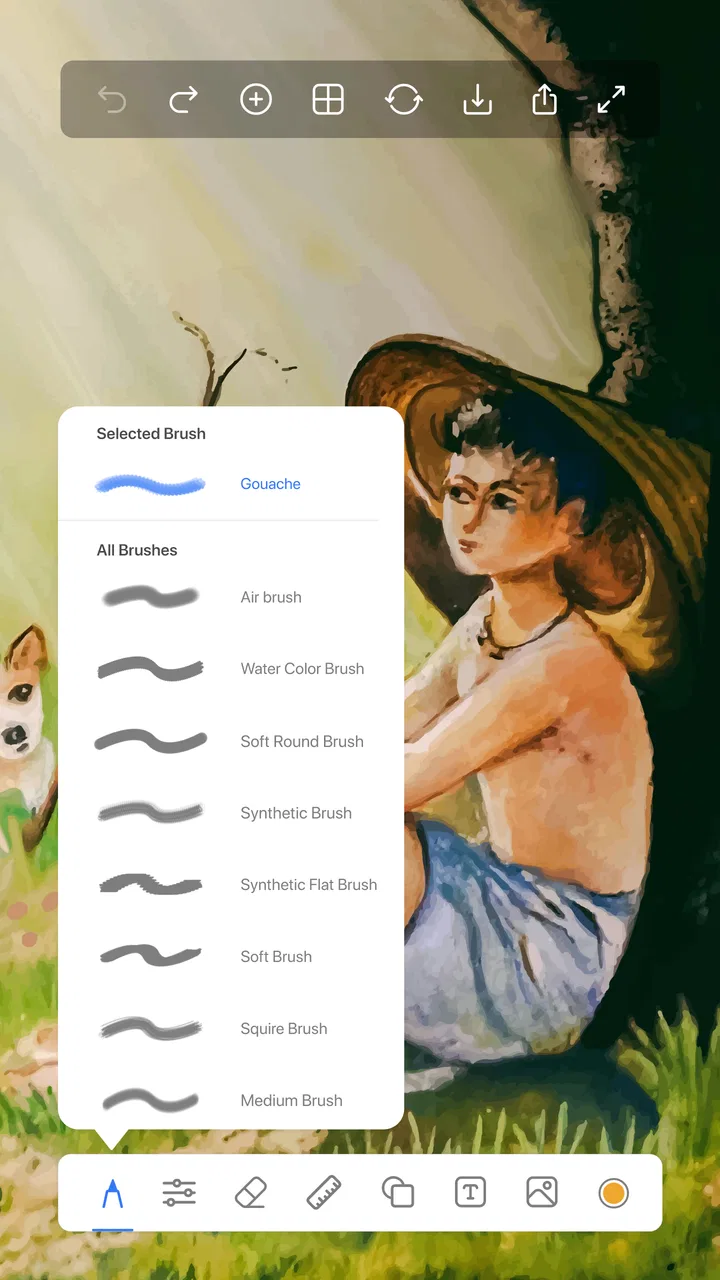
Drawing Apps: Draw, Sketch Pad is the kind of Android art app I open when I want to make something quickly without setting up a complicated creative workspace. It sits in the Art & Design category and is aimed at both children and adults, with a simple focus on drawing, painting, doodling, coloring, and sketching. That broad purpose is useful, although it also means the app feels more like an accessible digital sketchbook than a serious illustration studio.
My first impression is that its appeal comes from low friction. You can treat it as a place for rough ideas, casual coloring, handwritten notes, or a quiet few minutes of doodling. I would recommend it to someone who wants a straightforward drawing surface on an Android phone or tablet, especially if advanced professional tools would only get in the way. I would be more cautious about recommending it to an experienced artist who needs a deep layer system, highly precise brush control, or a carefully managed production workflow.
What the app is really like to use
The app is free to install, and its age rating is Everyone, which makes its intended audience unusually broad. Photo Editor Apps Maker Studio is the developer behind it, and the app has reached over 10 million installs with an average rating of 3.9 from around 13 thousand ratings. Those figures suggest that it has found a substantial audience, but the rating also tells me not to treat it as a flawless replacement for established drawing software.
You May Also Like

 AccuWeather: Weather Radar
AccuWeather Review: A Quick, Clear Forecast for Everyday Decisions
For everyday plans, the best forecast is the one you can understand quickly. AccuWeather makes rain timing, radar, and local conditions easy to act on, with a few trade-offs.

 Hill Climb Racing
Why Hill Climb Racing Still Turns Crashes Into One More Run
A tiny car, a bumpy hill and one more upgrade: Hill Climb Racing keeps resurfacing because its simple chaos makes every near-miss feel personal.

 AliExpress - Shopping App
AliExpress Makes Global Shopping Feel Personal, but Shoppers Bear the Risk
AliExpress turns a global marketplace into a pocket-sized discovery engine. Its reach is useful, its shopping loop compelling, and its trade-offs easy to miss.

 Lords Mobile: Kingdom Wars
Lords Mobile Is a Kingdom-Building Routine, Not a Quick Match
A case-by-case verdict on the building, battles, device demands, and social commitments that make Lords Mobile rewarding for some players and exhausting for others.

 PDF Scanner app - TapScanner
TapScanner Makes Paperwork Easier to Capture, Check, and Share
TapScanner makes scanning with a phone feel less like a rescue operation and more like a dependable step in getting work done. Its capture tools are useful, though not flawless.

 Block Blast!
 Shows How Much a Puzzle Game Can Leave Out
A quiet grid game shows why puzzle players increasingly value instant clarity, repeatable skill and low-pressure play—and where the genre still needs to catch up.
More From Our News Desk
View All News


I see its strongest role in short, informal sessions. A child can use it for coloring practice, a parent can keep it available for a simple creative activity, and an adult can use it to test a composition before moving to a more capable editor. It also suits people who are new to drawing on a touchscreen because the basic idea is easy to understand: open a canvas, choose a visual tool, and start making marks.
The current version is 1.9.4, and it works from Android 7.0 onward. That older minimum requirement is helpful for people using a device that is no longer new, although performance will naturally depend on the phone or tablet itself. Drawing on a small phone screen can feel cramped, while a larger tablet gives the experience more room to breathe. If you are choosing this for a child, the larger display is also easier to share and supervise.
What I like about this type of app is that it removes the pressure to produce finished artwork. I can use it for a quick pattern, a color experiment, or a rough visual reminder without feeling that every line needs to be perfect. That casual character is important: the app makes more sense as a digital pad for everyday creativity than as a full replacement for desktop illustration software.
A practical workflow for everyday sketches
One useful way to approach the app is to divide a drawing session into three stages. I start with a loose sketch, use the middle of the session to test colors or fill areas, and then reserve the final moments for cleaning up the most visible lines. This prevents me from spending too much time trying to perfect the first mark. It is a simple habit, but it makes a basic drawing app feel more purposeful.
For a realistic everyday example, imagine that I am planning a birthday card. I can use the canvas to try several lettering styles, place a few decorative shapes around the message, and experiment with a color combination before committing anything to paper. The app is especially convenient here because the work can begin during a spare moment rather than requiring a desk, pencils, and a complete set of art materials.
Another good use is visual note-taking. I might sketch the layout of a room, draw arrows over a rough idea, or make a quick diagram while explaining something to another person. This is not the same as using a dedicated diagramming tool, but the freedom of drawing by hand can be faster than arranging formal boxes and connectors.
For children, I would encourage short guided activities rather than leaving the app to carry the whole experience. Ask them to draw an object using only a few colors, create a repeating pattern, or turn a simple shape into an animal. These prompts make the app more engaging and help avoid the common problem of opening a blank canvas and not knowing what to do next.
Where it fits among drawing alternatives
Compared with a paper sketchbook, this app is cleaner and easier to restart. There are no pencil shavings, spilled paint, or wasted pages, and a digital canvas is less intimidating for someone who is still learning. Paper still wins when I want a tactile surface, natural resistance, or artwork that exists independently of a screen.
Compared with a general photo editor, Drawing Apps: Draw, Sketch Pad is better suited to starting with a blank surface rather than modifying an existing photograph. A photo editor usually makes cropping, filters, and image adjustments the priority. Here, the creative act begins with marks and colors, so it feels more direct for doodling and sketch practice.
Compared with a professional illustration app, the trade-off is simplicity versus control. A specialist tool is usually the better choice for detailed digital painting, comic production, animation planning, or work that depends on carefully separated elements. This app is more approachable, but that approachability may become limiting once a project needs a precise, repeatable workflow.
It also differs from a coloring-only app. Coloring apps often provide prepared outlines and a tightly guided experience, while a drawing pad gives me more freedom to begin from nothing. That freedom is valuable, but it also asks more from the user. Someone who mainly wants relaxing pre-made pictures may find a dedicated coloring product more satisfying.
Small decisions that improve the experience
I would not begin a serious drawing by trying to make the final version immediately. A better method is to use the first pass as a disposable draft. Make the large shapes, check whether the composition feels balanced, and only then spend time on smaller details. This approach is particularly helpful on a phone, where tiny corrections can become tiring.
Another practical tip is to keep the number of colors deliberately limited during the first attempt. Using a small palette makes a casual doodle look more coherent and makes it easier to notice whether the drawing itself works. Once the structure is right, I can add extra color without using it to hide weak proportions or an unclear idea.
I also find that the app is more useful when I give each session a narrow purpose. “Draw anything” sounds liberating, but it can produce a blank-screen pause. “Make three versions of a simple flower,” “design a tiny poster,” or “practice five different expressions” gives the session direction while keeping the pressure low.
For a child, I would set the creative challenge before handing over the device. A short prompt can turn the app from passive screen time into an activity with a clear beginning and end. For an adult, the same principle works for brainstorming: use the app to explore several rough options, then choose one idea to develop elsewhere if it deserves more precision.
Trust, controls, and moments that deserve attention
Because this is a free app with optional purchases, I would approach it with the same practical care I use for any creative tool. The listed in-app purchase range is from $6.99 to $13.99 per item. That does not automatically make the app poor value, but it does mean I would pay attention to what is offered before approving a purchase, particularly if a child will be using the device.
I prefer to review the visible purchase choices myself rather than assuming that every tool is included in the free experience. A useful routine is to open the app with the device owner present, inspect which options are available without payment, and decide in advance whether purchases are appropriate. On a shared family device, parental purchase controls are more important than the drawing features themselves.
The app is free, but “free” should be understood as an entry point rather than a promise that every possible option costs nothing. I would not start a project that depends on a particular paid capability until I had checked how that capability is presented in the current app. This is a small step, yet it prevents a child or an inexperienced user from discovering a purchase prompt halfway through a creative session.
When I think about data-sensitive moments, I focus on the actions I can actually observe: whether the app asks for access, whether a prompt explains why an action is needed, and whether I can decline without losing the basic drawing experience. I do not treat a simple interface as proof of strong privacy practices. Instead, I look at each permission or request when it appears and make a deliberate choice.
The same cautious approach applies to account controls. If an app presents a sign-in, purchase, or sharing decision, I want to know what I am agreeing to before continuing. I avoid entering unnecessary personal information into a casual sketching tool, and I would keep a child’s use supervised rather than handing over unrestricted control of a device.
That does not make the app difficult to use. It simply separates the creative activity from decisions that deserve adult attention. Drawing should be immediate, but purchases, sharing, and access requests should never be rushed just because the user is eager to continue a picture.
How much control the user really has
User agency is one of the app’s most important practical qualities. A blank drawing surface gives me room to choose the subject, style, and pace instead of forcing me through a fixed lesson. That makes it suitable for experimentation, but it also means the app does not replace learning. Beginners still need to develop their own method for planning a drawing and correcting mistakes.
I would describe the creative control as open-ended rather than professional-grade. That distinction matters. Open-ended tools are excellent for quick ideas because they do not interrupt every decision with a technical setting. Professional tools are better when I need to reproduce the same brush behavior, organize a complex illustration, or make detailed edits without disturbing other parts of the work.
For a family, the best arrangement is to let the child control the drawing while an adult controls purchases and broader device settings. For an adult user, I would keep the app as a low-pressure scratch space and move important finished work to a tool with stronger project management if the artwork becomes valuable or complicated.
I would also avoid judging the app solely by its rating. An average of 3.9 can reflect many different expectations: one person may want a simple doodle pad, while another expects a professional art suite. In my view, the rating makes more sense when read alongside the app’s purpose. It is most likely to satisfy someone seeking accessibility and speed, not someone searching for a complete studio.
Who should use it and who should skip it
I think it is a good fit for children who enjoy drawing, adults who want casual sketching, beginners learning how digital canvases feel, and anyone who needs a quick place to test visual ideas. It can also work well as a low-stakes activity during travel or a quiet break, provided the device has enough screen space for comfortable drawing.
I would skip it if my main goal were professional illustration, detailed comic pages, advanced photo manipulation, or a carefully organized archive of major projects. In those situations, a more specialized alternative is likely to justify its extra complexity. I would also look elsewhere if I wanted a structured coloring experience with prepared artwork rather than a blank canvas.
The app is not a substitute for artistic instruction, either. It gives me a place to practice, but it does not guarantee that a beginner will understand composition, perspective, or color harmony without outside guidance. That is not a serious flaw for a sketch pad, but it is an important expectation to set before installing it for a child or a learner.
My cautious verdict is that Drawing Apps: Draw, Sketch Pad works best when I treat it as an approachable creative starting point. Its free entry, Everyone rating, broad drawing focus, and support for devices from Android 7.0 make it easy to consider. The developer’s large install base shows that it has broad reach, while the 3.9 average suggests that individual expectations will matter.
I would recommend trying it for quick doodles, coloring experiments, rough planning, and family-friendly sketch sessions. I would keep purchase decisions supervised, review any visible access requests instead of assuming what they mean, and avoid relying on it for artwork that needs advanced control. The best reason to choose it is its low-pressure canvas, not the promise of a complete art studio.
In the end, I see this as a useful first step rather than a final destination. It can help someone begin drawing digitally without feeling overwhelmed, and it is convenient when an idea appears unexpectedly. If that simple workflow is exactly what you need, the app is worth exploring. If your work has already moved beyond casual sketching, you will probably be happier with a more specialized tool.
FAQs for Drawing Apps: Draw, Sketch Pad
01What features does the Drawing Apps: Draw, Sketch Pad offer?
The Drawing Apps: Draw, Sketch Pad provides a robust set of features including a variety of brushes, customizable color palettes, layers functionality, and precision tools for detailed artwork. It also supports different file formats for easy export and sharing, making it ideal for both beginners and professional artists.
02Is Drawing Apps: Draw, Sketch Pad suitable for beginners?
Yes, the app is designed to cater to users of all skill levels. Beginners will appreciate the intuitive interface and helpful tutorials, while more experienced artists can take advantage of advanced tools and features. The app offers a smooth learning curve with plenty of resources to improve your drawing skills.
03Can I use Drawing Apps: Draw, Sketch Pad offline?
Drawing Apps: Draw, Sketch Pad offers offline functionality, allowing you to create and edit your projects without an internet connection. However, certain features like cloud storage and community sharing may require being online. This flexibility makes it convenient for use anywhere, anytime.
04Does the app support stylus input for precision drawing?
Yes, Drawing Apps: Draw, Sketch Pad is compatible with various stylus devices, providing enhanced precision for detailed artwork. The app supports pressure sensitivity, allowing for a more natural and controlled drawing experience, which is crucial for artists looking for fine detail and accuracy.
05Are there any in-app purchases or subscriptions required?
While Drawing Apps: Draw, Sketch Pad offers a free version with essential features, it also includes optional in-app purchases for premium tools and features. These enhancements can significantly expand the app's capabilities, but users can still enjoy a comprehensive drawing experience without them.
Pros
- User-friendly interface for beginners.
- Wide variety of brushes and tools.
- Supports multiple file formats.
- Seamless layer management system.
- Frequent updates and improvements.
Cons
- Occasional lag on older devices.
- Limited free version features.
- No offline mode available.
- Ads in the free version can be intrusive.
- Some advanced tools require purchase.

Drawing Apps: Draw, Sketch Pad
Gallery